
 Custom Search


SAVE YOUR GAME FREQUENTLY. If you're playing the PC or Mac version of the game, there's no reason not to save often. It'll keep you from having to replay long sections of the game if something goes wrong, and can even save Lara's life—for example, during a battle with a big enemy, if you're doing well, save during the fight so if you do get killed, you won't have to start from scratch. One caveat: Be sure to save in a new slot every now and then, so if you accidentally save when you're doing badly or Lara is about to die, you can go back to a fairly recent save to start over.
I understand that the console games don't always allow unlimited saves. Just do the best you can, and be sure to choose new save slots every so often so you don't get stuck with a bad save late in the game.
BACK UP YOUR SAVES. If you're using a console, swap out your memory card every few levels. If you're playing on a PC or Mac, you can copy your current set of savegames to separate files in your TR directory then reload them later if you want to. Consider labeling the folders with the levels the games come from so you can distinguish them easily later. (My Savegame Files pages have PC, Mac and a limited variety of PS1 saves you can download if you need them. For general info and help backing up and installing, see my Savegame Help Page.)
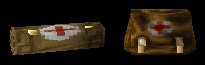
Small and Large Medipaks
CONSERVE HEALTH. You'll probably need more medipacks later in the game, as the enemies get tougher and the traps more dangerous. So don't use more than you need. Small medipacks bring back half of Lara's health; large kits restore full health. Remember, too, that full health is restored before each new level. So don't bother cracking that medipak if you're almost at the end of a level. In TR4, where you can move back and forth between certain levels, you can use this feature to restore Lara's health.
BE CREATIVE WITH MEDIPAKS. You can use them during a fight if necessary. In Beginning in TR2, there are in-game medipak hot keys (see the Controls page for the game you're playing). Or, you can just press the Pause or Escape key to take a time-out for healing. The game stops when you're looking at the inventory screen. Medipaks can also work like scuba gear if Lara gets caught underwater and runs out of air, and they can keep her alive for a few moments if she catches fire. These tactics are only for emergencies though, since drowning or burning depletes Lara's health pretty fast. Do this only when you know you can make it to safety quickly.
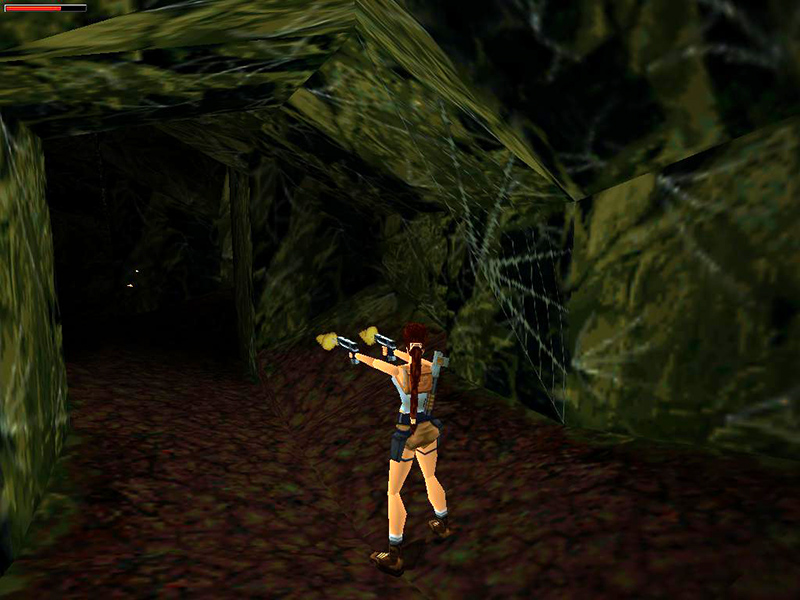
Using muzzle flare for light in TR2.
CONSERVE FLARES. Beginning in TR2, Lara gets flares to light her way. There are plenty to be found, but if you're running low, try these tricks. Save your game, explore a dark area using a flare then reload if you don't find anything interesting. Or, if you're desperate, turn up the brightness on your monitor or TV, or use pistol fire to light your way. In TR4 & 5, you can also use the binoculars for light. Press the Action key while looking through the binoculars to light up Lara's view. You'll have to navigate in the dark once you put the binoculars away, but at least you'll have an idea of where you're going.
WALK THROUGH SPIKES, BROKEN GLASS AND BARBED WIRE. This will seem obvious to veteran players, but if you're new to the game, take note: In the first three games Lara won't be injured if you walk through these dangerous areas. (In TR4 & 5 spikes are unsafe at any speed, so avoid them.)
DISABLE THE WINDOWS KEY. TR1 runs in DOS, and as a result, accidentally pressing the Windows (Start Menu) key will cause the game to crash to the desktop. Pressing the Windows key when playing the other games won't crash the program but can be annoying. Fortunately it can be prevented using either of these simple utilities and settings:
- For Windows 95/98/Me - Try WinKey Killer utility created by Brad Jackson. Instructions are included in the 'readme' text file accompanying the download.
- For Windows XP/Vista/7 - Try WKeyDisabler by ShoXDK. Link is to the WKey Disabler page on Codeplex.com, where you will also find instructions for using it.
- For Windows 10/11 - Download Microsoft PowerToys. This tutorial from MakeUseOf shows how to use PowerToys to remap the Windows key so it doesn't interfere with your gaming.
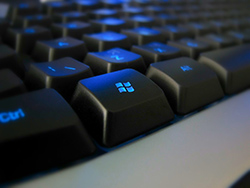
The Windows key is your enemy. Shut it down.
DISABLE STICKY KEYS & FILTER KEYS: The Windows operating system includes a special feature for users with disabilities that allows them to press a modifier key (Ctrl, Alt or Shift) for several seconds and have it remain active until another key is pressed. This causes problems in games like Tomb Raider, where holding these keys is used for functions like walking and climbing. To turn it off, go to Start > Control Panel > Accessibility Options (called "Ease of Access Center" in Windows Vista/7). Un-check the boxes for Sticky Keys and Filter Keys. Also be sure to click the Settings buttons under both features and un-check the Use Shortcut option.
In Windows 10/11, go to Settings and search "Ease of Access keyboard settings" (Win 10) or "Accessibility" > "Keyboard" (Win 11). From there, you can disable Sticky Keys, Toggle Keys, Filter Keys, and their shortcuts. Of course, you can re-enable them later if necessary.
GAMEPADS & JOYSTICKS: Tomb Raider I-III Remastered supports most controllers and allows users to customize controls, as well as swap between modern and classic "tank" controls at any time. The classic Tomb Raider PC games are notoriously finicky about which gamepads and joysticks they're compatible with. If you start the game only to find Lara runs in circles uncontrollably, this probably means you have an incompatible controller. Either unplug it and use the keyboard, recalibrate the device, or try using a keyboard-to-controller utility like JoyToKey or Xpadder.
For detailed instructions setting up JoyToKey, check out Mipo's Seamless Controller Setup for Original Tomb Raider Games.